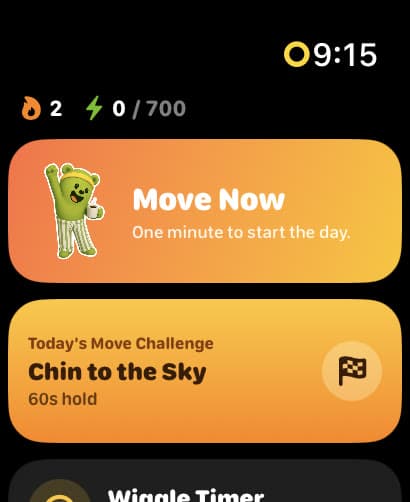
Move Now and the daily challenge
One tap for a one-minute move, plus today's Move Challenge. Your streak and today's Watts sit right on top.
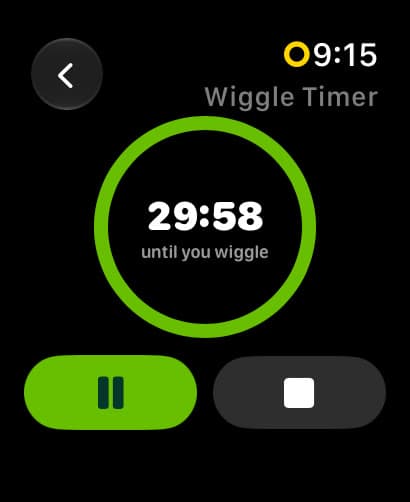
Apple Watch nudges you to stand once an hour. Wakeout's Wiggle Timer lets you pick the gap, anywhere from 5 minutes to 2 hours, right on the crown. When it's time, a one-minute move plays on your wrist. Stand up, follow along, done.
Written by Pedro Wunderlich, Co-founder, Wakeout · Updated

What Apple’s stand reminder does
Apple’s stand reminder is the Activity nudge that taps you when you’ve sat through most of an hour: if you haven’t stood and moved for a minute yet, it buzzes about ten minutes before the hour. It’s on or off, and the hour is the hour. The Wiggle Timer is the same idea with a dial.
| What Apple’s stand reminder does | Apple's stand reminder | Wakeout Wiggle Timer |
|---|---|---|
| How often | Once an hour | You pick: 5 to 120 minutes |
| Where you set it | On or off in Settings | The crown on your watch, or your iPhone |
| What it asks | Stand for a minute | A one-minute move to follow |
| What you see | A notification | The video, playing on your wrist |
| Stand ring | Yes | Yes, when you stand up and move |
How it works
Three steps, and the first one only happens once.
Open Wiggle Timer on your watch and turn the crown: every 30 minutes, every 45, every hour and a half. Or start it on your iPhone and it starts on your watch at the same moment.
The countdown sits on your wrist. Pause it for a meeting, stop it at lunch. Your phone and watch always agree on the time left.
When it buzzes, tap Wiggle now and a one-minute Wakeout plays right on your wrist. Then the next round starts by itself.
Stand up and move through your minute and it counts toward that hour on Apple's Stand ring, plus Watts and your Wakeout streak.
The part that feels like magic
Start a Wakeout, a movement game or the Wiggle Timer on your iPhone and the Wakeout app wakes up on your watch by itself. No opening it, no tapping around. It becomes your tracker and your remote while you move.
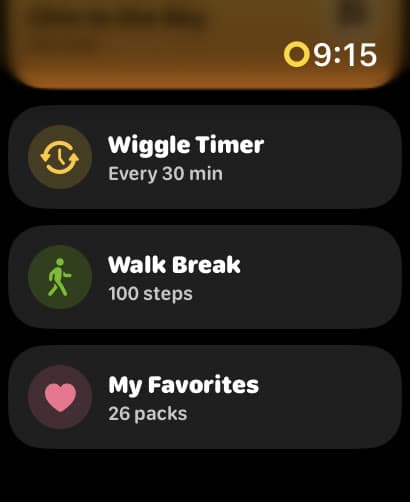
When a reminder buzzes
A Wiggle Timer reminder starts a Wakeout straight away. Your other Wakeout reminders do one of two things: start a Wakeout on your wrist, or open the watch app so you can pick what you feel like.
More on your wrist
One tap for a one-minute move, plus today's Move Challenge. Your streak and today's Watts sit right on top.
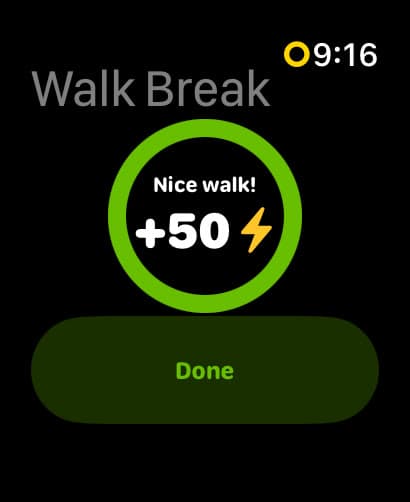
Walk 100 steps with your phone on the desk. The watch counts them and pays 50 Watts at the end.
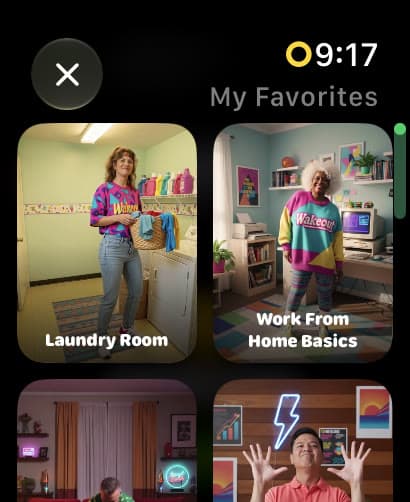
Every pack you've hearted, ready to play on your wrist.
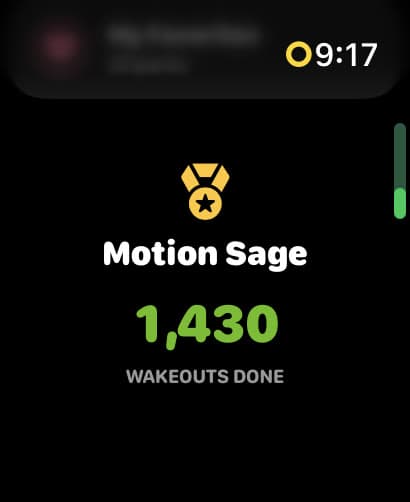
Every Wakeout adds up, and the watch keeps count.
On iPhone too
The Wiggle Timer works on iPhone too, with a Live Activity on your Lock Screen. The movement reminder app page covers every way Wakeout reminds you to move.
See the movement reminder appIt’s the Apple Watch nudge to get up and move. If you haven’t stood and moved around for at least a minute in the current hour, your watch taps you at about ten minutes to the hour. Every hour you stand counts toward your Stand ring. It’s part of the Activity app, it checks once an hour, and you can only switch it on or off.
Apple's own reminder can't do it: it comes once an hour. With Wakeout, open Wiggle Timer on your watch, turn the crown to 30 minutes and start it. Every 30 minutes your watch buzzes and a one-minute move is one tap away.
Not the built-in one. You can turn Apple's stand reminders on or off, but it always checks once an hour. The Wiggle Timer is how you get a different gap: anything from 5 minutes to 2 hours.
On your watch, open Settings, then Activity, and switch off Stand Reminders. On your iPhone, it's the same switch in the Watch app under Activity. If you'd rather be nudged on your own schedule, set the Wiggle Timer instead.
Yes. Stand up and move through your Wakeout and it counts toward that hour on your Stand ring. It also earns Watts and keeps your Wakeout streak going.
No. Start a Wakeout, a movement game or the Wiggle Timer on your iPhone and the watch app opens by itself, ready to track and to act as your remote.
Yes. The one-minute Wakeout plays right on your wrist, so you can follow along without picking up your phone.
Yes. Wakeout Pro covers iPhone, iPad, Mac and Apple Watch with one subscription, and it starts with a free week.
Wakeout for iPhone and Apple Watch. Set the Wiggle Timer once and let your wrist do the remembering.